E-commerce Inventory Analysis
5/21/2026
Problem
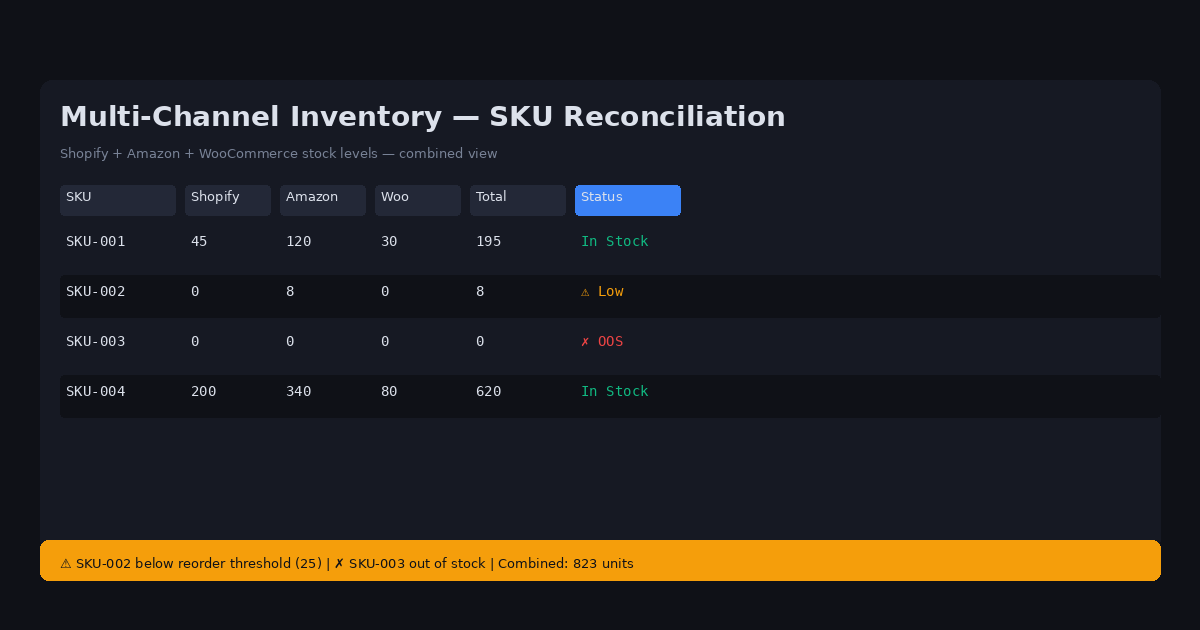
E-commerce operations teams manage inventory across multiple sales channels. Every week, you need to reconcile inventory levels from Shopify, Amazon, and your warehouse management system. The goal: identify SKUs that are low in stock, flag discrepancies between platforms, and generate a reorder report.
The manual process is repetitive and error-prone. You export inventory CSVs from each platform, open them in traditional spreadsheets, try to match SKUs (they're formatted differently across platforms), identify which rows do not have a match, calculate reorder quantities, and format the output for your procurement team.
Traditional spreadsheets crashes when the combined dataset exceeds a few hundred thousand rows. But even below that threshold, the VLOOKUP formulas linking multiple sheets are slow and frequently break when column positions change.
Why It Happens
Inventory data from different platforms uses inconsistent SKU formats. Amazon might use "FBA-AMZN-SKU12345" while Shopify uses "SKU-12345" and your WMS uses "WH-SKU-12345." Date formats in stock update columns differ across systems. Units of measure might be "units" in one system and "boxes" in another.
When you try to consolidate this into one view, you are essentially running a data cleaning project every week — the same work, the same frustration, the same copy-paste errors.
Cloud inventory tools solve the technical problem but require uploading your internal stock levels and supplier information to their platforms.
Practical Workflow
-
Export inventory CSV reports from Shopify (Products > Export), Amazon (Inventory > Manage Inventory > Export), and your WMS.
-
Use Directory Mode in DataOlllo to load all inventory files simultaneously. Auto column alignment handles different column orders and naming conventions.
-
Normalize SKU formats — use DataOlllo's text transformation to strip platform prefixes (FBA-, WH-, etc.) and standardize to a common SKU format.
-
Merge inventory levels — join the normalized files by clean SKU to create a unified inventory view across all platforms.
-
Identify low stock — filter where combined stock across all channels falls below your reorder threshold.
-
Generate the reorder report — group by supplier, sum quantities by SKU, export for your procurement system.
Directory Mode Instructions
Inventory reconciliation is a weekly recurring task. Use Directory Mode to automate the repetitive part:
- Create a weekly folder: "Inventory/Week_2026_01/"
- Drop new platform exports in each week
- DataOlllo processes all files with the same normalization and matching logic
- Export the unified low-stock report
After the initial setup, weekly inventory reconciliation that took an hour becomes a 5-minute task.
Common Inventory Column Names by Platform
| Platform | SKU | Stock Qty | Warehouse | Last Updated |
|---|---|---|---|---|
| Shopify | SKU | inventory_quantity | -- | updated_at |
| Amazon | ASIN | Afn-warehouse | fulfillment | last_updated |
| WooCommerce | _sku | stock | stock_location | modified_date |
| Custom WMS | Item_Code | On_Hand | Location | Sync_Date |
DataOlllo's text transformation strips platform prefixes (FBA-, WH-, SH-) to normalize SKUs across all sources.
When to Use DataOlllo
Multi-channel inventory analysis is a strong fit for DataOlllo's Directory Mode.
Relevant capabilities:
- Directory Mode — merge inventory from multiple platforms simultaneously with auto column alignment
- Text normalization — strip platform-specific prefixes and standardize SKU formats across sources
- Local processing — inventory data (supplier info, stock levels, reorder points) stays private
- Batch filtering — identify low-stock SKUs across all channels in one operation
Traditional spreadsheets' VLOOKUP approach breaks at scale and requires manual maintenance every time the data structure changes. DataOlllo's matching is more robust to column variation.
Next Step
See the E-commerce solution page for more inventory and sales workflow examples.