Bank Reconciliation in Seconds: How to Match Bank Statements with Payment Records Locally
5/25/2026
Every month, analysts across finance, accounting, and operations face the same tedious task: matching transactions from a bank statement CSV against records from a payment processor like Stripe, PayPal, or Square. The goal is simple — find the differences. The process is anything but.
The Problem
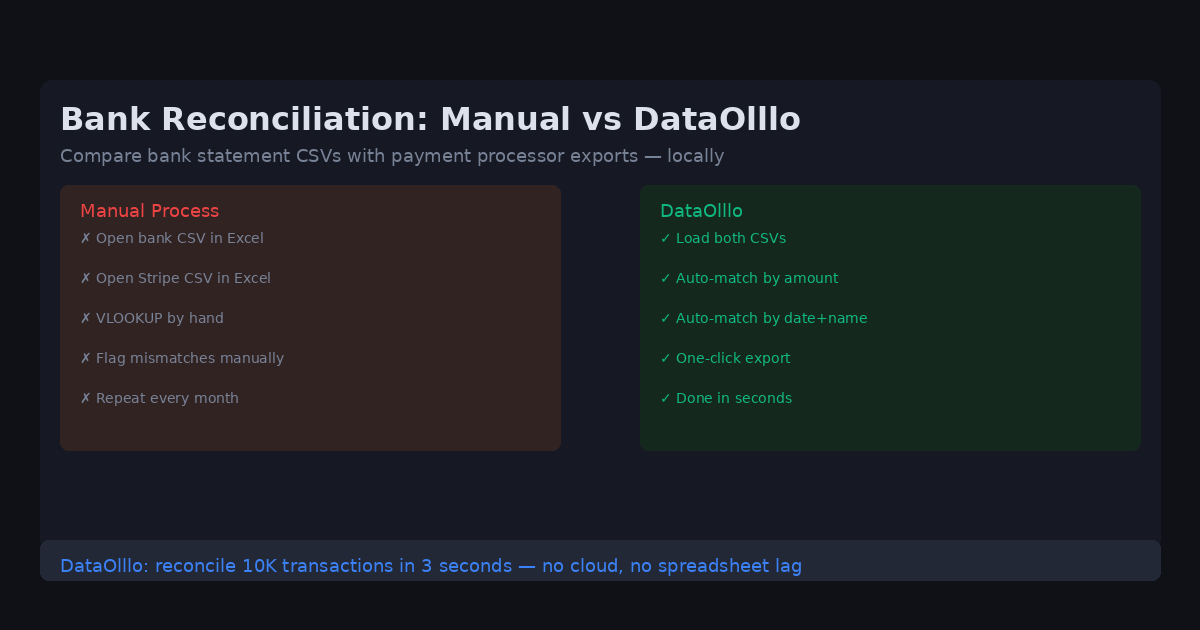
A typical reconciliation workflow looks like this: download a bank CSV, download a Stripe (or payment processor) CSV, open both in traditional spreadsheets, try to match transactions by amount and date using VLOOKUP, find the rows that don't match, investigate each discrepancy, and repeat every single month.
For teams processing hundreds or thousands of transactions, this is hours of manual work every month — work that involves handling sensitive financial data on a spreadsheet that's prone to errors.
Why It Happens
Bank and payment processor exports rarely align perfectly. The same transaction might appear with different dates (charge date vs settlement date), slightly different amounts (after fees), or slightly different merchant names. Spreadsheets were never designed for this kind of fuzzy multi-key matching — VLOOKUP requires an exact key, not an approximate one.
Practical Workflow
Here's how DataOlllo handles bank reconciliation locally:
Step 1: Load both CSVs side by side Open your bank statement CSV in DataOlllo alongside the payment processor export. DataOlllo handles files of any size — a 10,000-row reconciliation is no harder than a 100-row one.
Step 2: Use Directory Mode for recurring reconciliations If you do this every month, use Directory Mode. Point DataOlllo at a folder containing last month's bank CSV and payment processor export — it loads both, applies the same matching logic, and outputs a reconciled report automatically.
Step 3: Match by amount and approximate date DataOlllo's filtering works across multiple columns at once. Filter the bank CSV by amount ranges that match the payment processor records, then cross-check by transaction name. Where spreadsheets require a single exact key, DataOlllo lets you filter by multiple approximate criteria simultaneously.
Step 4: Flag unmatched transactions After filtering, the transactions that don't appear in both files are your discrepancies. Export them as a separate CSV for investigation.
Step 5: Export the reconciled report Export the full matched result as a clean CSV. The reconciliation is done.
When to Use DataOlllo
- Large transaction volumes: If your monthly reconciliation involves more than a few hundred transactions, DataOlllo's filtering and GroupBy make the process fast — load, filter, match, export in under 5 minutes.
- Sensitive financial data: Bank and payment data is sensitive. DataOlllo processes it entirely locally — no cloud upload, no third-party access, no data exposure.
- Recurring workflows: The Directory Mode feature is purpose-built for recurring reconciliations. Set it up once, run it every month.
Next Step
Download DataOlllo and try it on your next bank reconciliation. Load your bank CSV and payment processor export, filter by matching amounts, and find your discrepancies in seconds instead of hours.