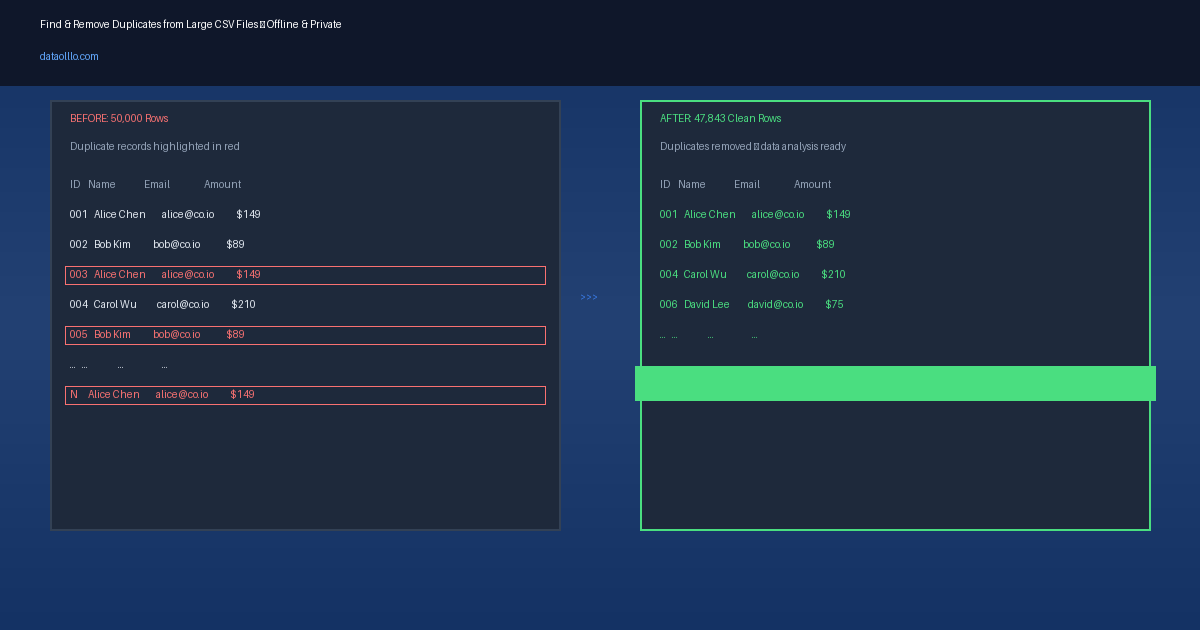
How to Find and Remove Duplicate Records in Large CSV Files — Fast and Offline
5/13/2026
The Duplicate Problem in Large Datasets
Every dataset over 10,000 rows eventually has duplicates. Customer imports from multiple sources, CRM sync errors, web form resubmissions, ERP data migrations — duplicate records accumulate silently. By the time you notice, you've already run analysis on corrupted data, sent personalized emails twice to the same person, or reported inflated revenue numbers to stakeholders.
The pain scales with file size. In traditional spreadsheets, removing duplicates requires selecting columns, clicking a button, and hoping it doesn't freeze on your 500,000-row file. Online dedup tools force you to upload sensitive customer data to their servers — a compliance risk you may not even be aware you're taking. Google Sheets simply crashes.
This guide covers a practical, repeatable workflow for finding and removing duplicates from large CSV files — locally, privately, and without writing code.
Why Standard Tools Struggle with Duplicates at Scale
Traditional Spreadsheets
Traditional spreadsheets "Remove Duplicates" feature works on small files, but degrades fast. Files over 100MB take minutes to process or crash outright. Traditional spreadsheets also loads the entire file into memory — if you're working with financial records or customer PII, your data is sitting in a process others can potentially read.
Google Sheets has a hard 10 million cell limit. For a dataset with 20 columns, that's roughly 500,000 rows before Sheets simply won't open the file. The dedupe feature exists but becomes inaccessible right when you need it most.
Online Deduplication Tools
Web-based dedup services seem convenient. Upload your CSV, click a button, download the result. What you may not realize: your file — with all its customer names, email addresses, transaction amounts, and PII — is now stored on someone else's server. Depending on your industry, this could violate GDPR, HIPAA, or PCI-DSS requirements. Even if compliance isn't a concern, you're trusting a third party with data that should stay internal.
Python and SQL
Writing a pandas script to remove duplicates is doable if you know Python. The challenge: deduplication logic isn't always as simple as "drop exact matches." Do you consider a record a duplicate if the email matches but the name is spelled differently? What about dates that are one day apart due to timezone errors? Effective deduplication often requires fuzzy matching — and fuzzy matching in Python means additional libraries, more code, and potential performance issues on very large files.
A Practical Workflow for Removing Duplicates from Large CSVs
This workflow uses a local desktop approach that keeps your data private, handles files of any size, and doesn't require coding.
Step 1: Export and Inspect Your Data
Pull the CSV from your source system — CRM, ERP, e-commerce platform, or database export. Note the columns that matter for deduplication:
- Unique identifier column — ID, email, customer number (best for exact matching)
- Key data columns — name, address, phone (for fuzzy matching decisions)
- Timestamp column — useful for deciding which record to keep when duplicates exist
Open the file and do a quick inspection. Sort by your identifier column and look for obvious clusters of duplicates. Note any formatting inconsistencies — extra spaces, mixed case, different date formats — that might prevent duplicate detection from working correctly.
Step 2: Choose Your Matching Strategy
Not all duplicates are identical copies. Choose the right matching approach based on your data quality:
Exact match — Remove rows where all selected columns are identical. Fast, simple, reliable. Best when your source data is well-structured.
Partial match — Match on a subset of columns (e.g., email address only) while ignoring others. Useful when one system captures more detail than another.
Fuzzy match — Recognize that "John Smith" and "Jon Smith" are likely the same person. Requires more processing but catches the duplicates that simple exact-match algorithms miss.
For most business datasets, starting with exact match and then reviewing flagged records manually gives the best results with the least risk of incorrectly removing valid records.
Step 3: Detect and Review Duplicates
Run your deduplication process and review the results before permanently removing anything. A good approach:
- Flag all duplicate candidates rather than removing them immediately
- Sort flagged records together so you can review them as a group
- Decide which record to keep based on: most recent timestamp, most complete data, or most recent system entry
- Document your retention logic so the process is repeatable
Step 4: Export Clean Data
Once you've reviewed and confirmed your duplicate handling decisions, export the cleaned dataset. Save it with a new filename that includes the date and the phrase "deduplicated" — this makes it easy to trace which version of the data any downstream report came from.
Automating the Repeat Process
If you receive the same dataset structure every week or month, set this up as a reusable workflow:
- Save your deduplication settings (which columns to match on, retention logic)
- Apply the same settings to each new export
- Compare the before/after row counts to confirm the process ran correctly
- Export the cleaned file with consistent naming
This turns a 30-minute manual task into a 2-minute verification step.
Common Deduplication Pitfalls to Avoid
Removing too aggressively — If your matching logic is too broad, you'll accidentally remove valid distinct records. Always review flagged duplicates before permanent deletion.
Ignoring formatting differences — " john [at] example.com " (with spaces) and "john [at] example.com" look different to a computer but are the same email address. Normalize before matching.
Keeping the wrong record — When duplicates have different data in different columns, decide systematically which version to keep. "Most recent" only works if you have a reliable timestamp.
Forgetting to check related tables — If customer data appears in multiple related files, deduplicating one table without checking the others can create referential integrity problems.
When Data Stays Local Matters Most
Some datasets should never leave your machine. Customer lists with PII, financial transactions, healthcare records, employee data — uploading these to online tools, even temporarily, creates compliance exposure. A local deduplication workflow means:
- No data leaves your environment
- No third-party server stores your records
- No risk of a vendor data breach exposing your customer information
- Audit trails stay entirely within your infrastructure
For businesses in regulated industries, this isn't just a preference — it's often a requirement.
Quick Summary
| Challenge | Standard Approach | Local Desktop Approach |
|---|---|---|
| File size limits | Traditional spreadsheets crashes, Sheets won't open | Handles files of any size |
| Privacy | Upload to third-party servers | Data never leaves your machine |
| Matching options | Exact match only | Exact, partial, and fuzzy matching |
| Automation | Manual each time | Reusable workflow setup |
| Review before delete | Not available | Review flagged duplicates first |
Try It
DataOlllo handles CSV deduplication workflows entirely on your local machine. Open files of any size, use natural language to describe your matching logic, and export clean data without uploading anything to the cloud.
See the Data Cleaning solution page for more workflows.