How Operations Teams Clean ERP CSV Exports Without Uploading Sensitive Data
6/16/2026
Why ERP CSV Exports Become Hard to Trust
Operations teams often depend on CSV exports from ERP, inventory, purchasing, and order-management systems. The export looks simple at first: rows, columns, dates, item codes, quantities, suppliers, and status fields.
The problem appears when the file becomes part of a weekly reporting process. One system exports Item ID, another uses SKU, a third includes blank warehouse codes, and a regional team adds manual notes before sending the file back. By the time the analyst opens the report, the data is no longer a clean table. It is a collection of small inconsistencies that can change the final decision.
For sensitive operating data, uploading the full file to a cloud service may also be inappropriate. Supplier pricing, customer order history, production quantities, and internal margin fields should usually stay inside the business environment.
A Realistic ERP Cleanup Scenario
Imagine a purchasing analyst receives three exports every Monday:
| File | Typical rows | Common issue | Why it matters |
|---|---|---|---|
open_purchase_orders.csv | 180,000 | Supplier names entered in multiple formats | Spend by supplier becomes inaccurate |
warehouse_receipts.csv | 420,000 | Blank receiving dates and duplicate receipt IDs | Late-delivery reporting becomes unreliable |
inventory_snapshot.csv | 950,000 | Different SKU column names by region | Stock risk cannot be compared across warehouses |
In a traditional spreadsheet workflow, the analyst usually fixes these issues by filtering, copying, renaming columns, removing duplicates, and rebuilding pivot-style summaries manually. That works for small files. It becomes fragile when the export grows, when columns change, or when the same cleanup must be repeated every week.
The Local DataOlllo Workflow
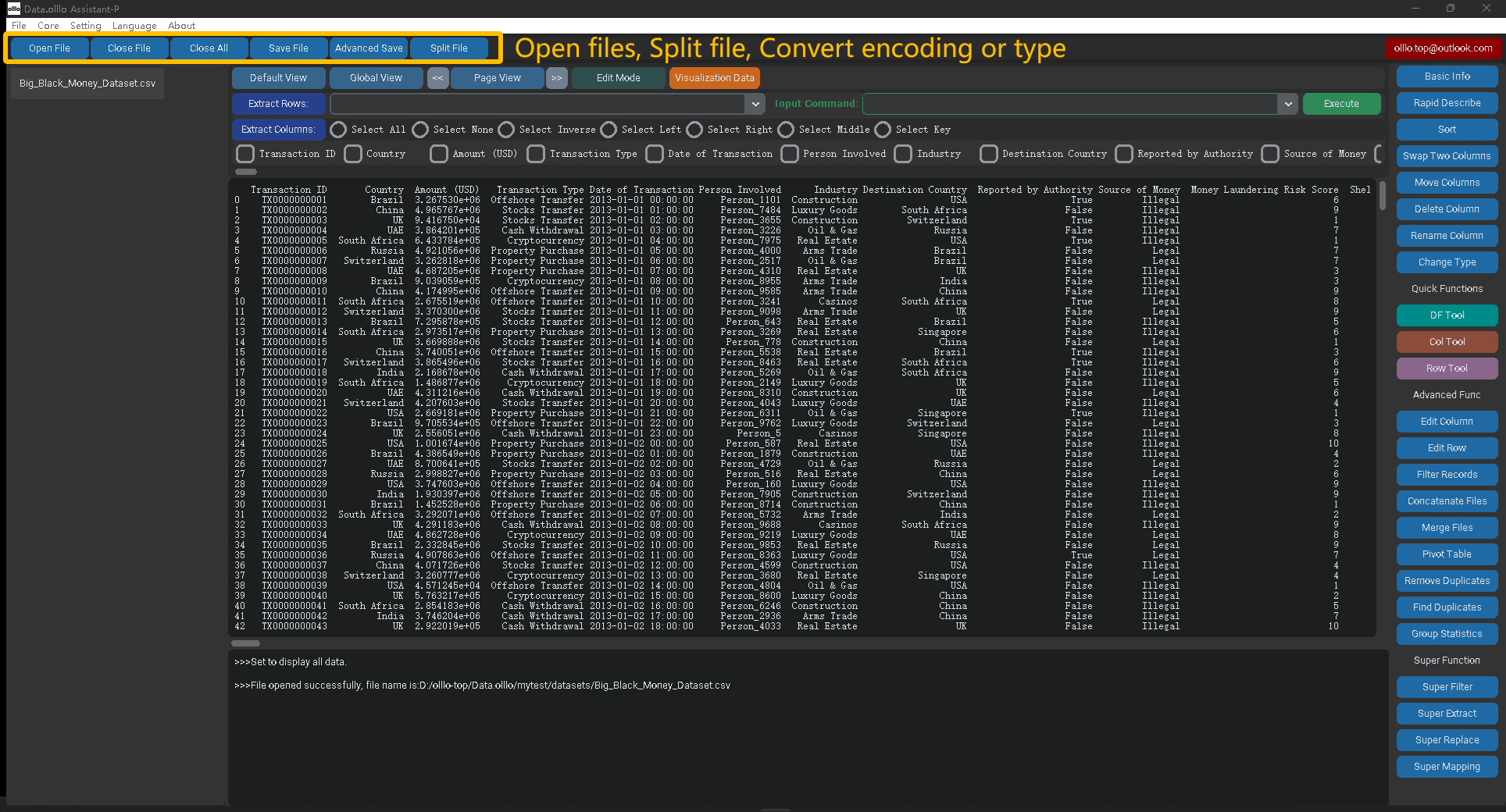
DataOlllo is useful here because the work can stay local while still giving the analyst a no-code way to inspect, clean, filter, join, and export large structured files.
- Open the ERP exports directly from disk. Keep the source files in the company folder, local drive, or approved workstation location.
- Preview column quality before transforming anything. Check for blank fields, duplicate IDs, inconsistent date formats, and columns with similar meanings.
- Normalize columns used for reporting. Rename fields like
SKU,Item ID, andProduct Codeinto one consistent reporting column. - Filter obvious exceptions. Isolate rows with missing dates, negative quantities, duplicate purchase order numbers, or inactive warehouse codes.
- Join related files only after cleanup. Match purchase orders to receipts by order ID, or inventory snapshots to product master data by SKU.
- Generate a summary table or chart. Review late receipts, high-risk stockouts, or supplier records that need correction.
- Export the cleaned dataset. Save the output for reporting, audit review, or downstream analysis.
Example Data Quality Review
Before building a report, the analyst can use a simple quality check like this:
| Check | Example rule | Action in DataOlllo |
|---|---|---|
| Missing key fields | SKU or PO_Number is blank | Filter blanks and export exception list |
| Duplicate records | Same receipt ID appears twice | Remove or review duplicates before joining |
| Inconsistent supplier names | Acme Ltd, ACME LTD, Acme Limited | Normalize text values for reporting |
| Date format mismatch | 2026-06-16 mixed with 06/16/26 | Convert to one date format |
| Outlier quantities | Received quantity is negative or unusually high | Filter and review before summary |
This kind of review is small, but it prevents expensive reporting mistakes. A supplier performance dashboard is only useful if the supplier names, receipt dates, and order IDs are consistent.
Text-Based Quality Chart
Here is an example of how an operations team might summarize cleanup findings before final reporting:
| Issue type | Records found | Relative volume |
|---|---|---|
| Missing warehouse code | 2,430 | ████████ |
| Duplicate receipt ID | 740 | ██ |
| Supplier name mismatch | 1,820 | ██████ |
| Invalid received quantity | 310 | █ |
| Date format issue | 1,105 | ████ |
The goal is not to make the chart decorative. The goal is to show which cleanup problem deserves attention first. If most issues come from missing warehouse codes, the operations team can fix the source process instead of repeatedly repairing the report by hand.
When Directory Mode Helps
ERP cleanup often becomes more valuable when it is repeated. If a team receives daily or weekly exports with the same structure, DataOlllo's Directory Mode can process a folder of files together.
For example:
- Put weekly purchasing exports in one folder.
- Open the folder in Directory Mode.
- Apply the same filters and column normalization.
- Compare this week's exceptions against the previous week.
- Export one cleaned file for reporting.
This reduces the repeated open-copy-filter-save pattern that makes spreadsheet workflows slow and error-prone.
What Stays Local
The operational advantage is privacy as much as speed. ERP exports can include supplier terms, unit costs, customer order references, employee IDs, or internal facility names. With a local-first workflow, the working file does not need to leave the approved machine just to be cleaned.
DataOlllo is designed for teams that need practical analysis without turning every CSV cleanup into a programming task or a cloud upload.
Best-Fit Use Cases
This workflow is especially useful for:
- purchasing teams cleaning open order exports
- inventory teams comparing warehouse snapshots
- finance operations teams reconciling transaction exports
- manufacturing teams reviewing quality logs
- ecommerce operations teams merging order and fulfillment files
The common pattern is simple: large structured files, repeated cleanup, sensitive business data, and a need for reliable reporting.
Next Step
If your team spends hours cleaning ERP exports before every report, try the same workflow in DataOlllo: open the raw CSV locally, inspect data quality, normalize the columns, and export a cleaned file for analysis.
Download DataOlllo at www.dataolllo.com/download.