How to Clean and Analyze Large EMR Exports Without Uploading Patient Data
5/27/2026
The Problem
Hospitals and healthcare teams routinely export massive Electronic Medical Records (EMR) datasets from systems like Epic, Cerner, or Allscripts. These exports can contain hundreds of thousands of patient records — each with dozens of columns tracking diagnoses, treatments, costs, and outcomes.
The operational workflow looks like this: export a CSV from your EMR system, open it in Excel, try to filter for a specific patient cohort, and watch the application freeze or crash entirely. Even on powerful machines, Excel commonly fails to handle files with 500,000+ rows.
The manual alternative — filtering in smaller batches or using Power Query — adds significant time to what should be a simple analysis task. And uploading the data to a cloud-based analytics tool creates HIPAA compliance risk, since Protected Health Information (PHI) leaves your network.
Why This Happens
EMR exports are wide and deep. A single patient record might include admission date, discharge date, primary diagnosis, secondary diagnoses, physician names, department, room charges, medication codes, lab results, and dozens more. When you multiply that by 500,000 rows, you're working with datasets that can be several gigabytes in size.
Excel's compression engine loads the entire file into memory, which means a 2GB CSV can easily consume 8-10GB of RAM during processing. Most systems hit that ceiling quickly.
Cloud analytics platforms solve the performance problem but introduce a serious compliance problem: patient data traveling to third-party servers, crossing organizational boundaries, and potentially exposing PHI to unauthorized access.
Step-by-Step Workflow
-
Export your EMR CSV from Epic, Cerner, or any EHR system. Save it locally to your workstation.
-
Open the file in DataOlllo. The desktop app loads multi-gigabyte CSV files directly from your hard drive — no upload required.
-
Use AI Chat to ask questions in plain English: "Show all patients admitted in the last 90 days with a primary diagnosis of Type 2 Diabetes" or "Filter to patients with total charges over $10,000."
-
Apply column filters for specific criteria: department equals "Cardiology," diagnosis code starts with "E11," length of stay greater than 3 days.
-
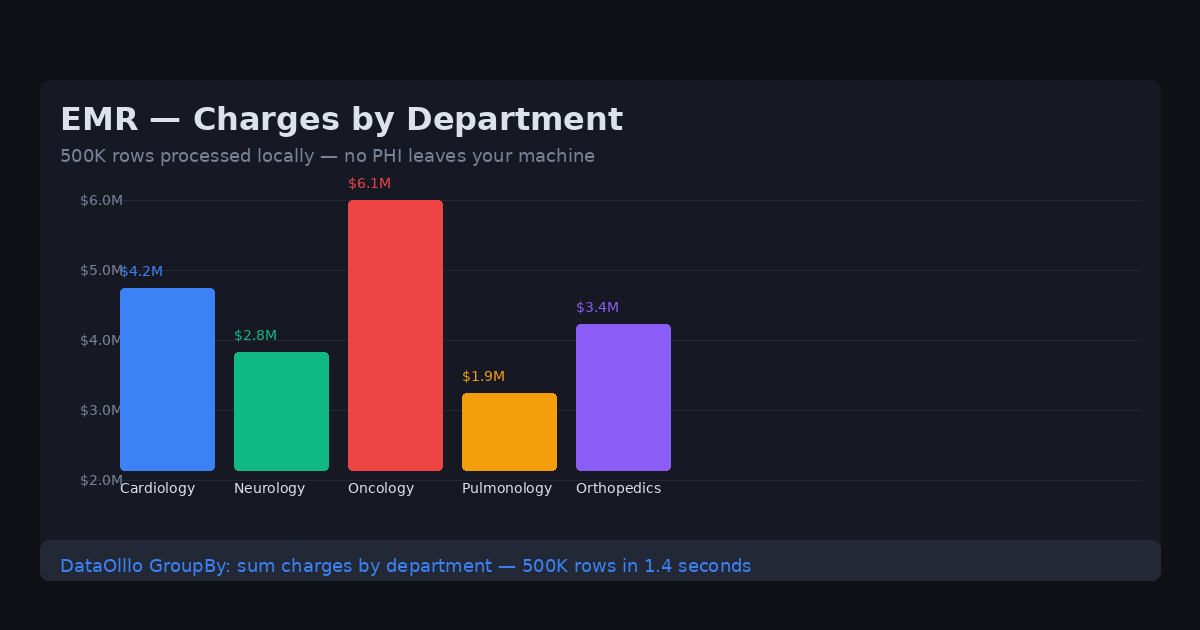
Group patient populations using the aggregation panel: count patients by department, sum total charges by diagnosis category, average length of stay by physician.
-
Export the cleaned cohort as a new CSV for your analytics team or reporting tool.
-
Use Directory Mode if you receive weekly or monthly EMR exports — point DataOlllo at the folder and it processes all files automatically, applying the same transformations each time.
Automating This with Directory Mode
If your hospital receives daily or weekly EMR extracts from an automated feed, Directory Mode eliminates the repetitive import step entirely.
Instead of manually opening each new CSV, place all your EMR exports in one folder. DataOlllo reads every file, auto-aligns columns even when column order differs between exports, and appends them into a single unified dataset. You can then apply the same cohort filters and group-by operations to the combined dataset.
This is particularly useful for:
- Monthly quality metric reporting
- Recurring regulatory submissions
- Year-over-year trend analysis across rolling 12-month windows
Key EMR Data Fields
| Field | Type | Example | Common Use |
|---|---|---|---|
| Patient_ID | String | PID-0042 | Unique record lookup |
| DOB | Date | 1978-03-14 | Age calculation, cohort filtering |
| Diagnosis | ICD-10 | I50.9, E11.9 | Primary/secondary diagnosis groups |
| Dept | String | Cardiology | Department-level aggregation |
| Charges | Currency | $12,450 | Financial reporting, cost analysis |
| Readmit_30d | Boolean | Yes/No | Quality metric, CMS compliance |
Tip: Filter out PHI columns (DOB, Patient_ID) before exporting to your analytics team. Keep them locally for compliance.
When DataOlllo Is the Right Tool
DataOlllo is purpose-built for this exact workflow: large healthcare datasets that are too big for Excel and too sensitive for the cloud.
Relevant capabilities:
- Local offline processing — EMR data never leaves your workstation, maintaining HIPAA compliance by design
- Large CSV handling — open datasets with hundreds of thousands of rows and thousands of columns without freezing
- AI-assisted filtering — ask questions in natural language without building complex filter formulas
- No-code analysis — clinical staff can perform cohort analysis without SQL or Python knowledge
Spreadsheets struggle with wide healthcare datasets because they load everything into memory. DataOlllo streams the file directly from disk, only processing the columns and rows you actually need for your analysis.
Get Started
Download DataOlllo and process your first EMR export locally — no cloud, no compliance risk, no crashes.
For specific healthcare data workflows, visit the Healthcare solution page.