Process an Entire Folder of CSV Files in One Step: The Directory Mode Workflow
5/29/2026
The Problem
Many business workflows involve processing the same type of data repeatedly: weekly sales reports, daily inventory exports, monthly financial statements, quarterly HR headcount reports. Each time a new file arrives, someone has to open it, apply the same filters, run the same calculations, and export the result.
For analysts managing multiple recurring reports, this becomes a significant time sink. A workflow that takes 10 minutes per file becomes 40+ minutes per week if you're managing 4 recurring reports — time that could be spent on actual analysis.
The alternative — writing an automated script — requires programming knowledge, takes hours to build and test, and breaks every time the source file format changes even slightly.
Why This Happens
Recurring CSV workflows share common characteristics: the data structure is consistent (same columns, same meaning), but the specific values change (different date ranges, new rows). The analyst performs the same mental and digital steps every time, just on fresh data.
Spreadsheets are manual by design — each file is opened, processed, and saved individually. There's no concept of "apply the same transformation to whatever file lands in this folder."
Automation platforms (Make, Zapier, Airflow) can help but are designed for triggering actions, not for transforming data. They still require you to define the transformation logic, which is the hard part.
Step-by-Step Workflow
-
Organize your files — place all recurring CSV exports in one folder, organized by date or period (e.g., "Recurring_Reports/2026/01", "Recurring_Reports/2026/02").
-
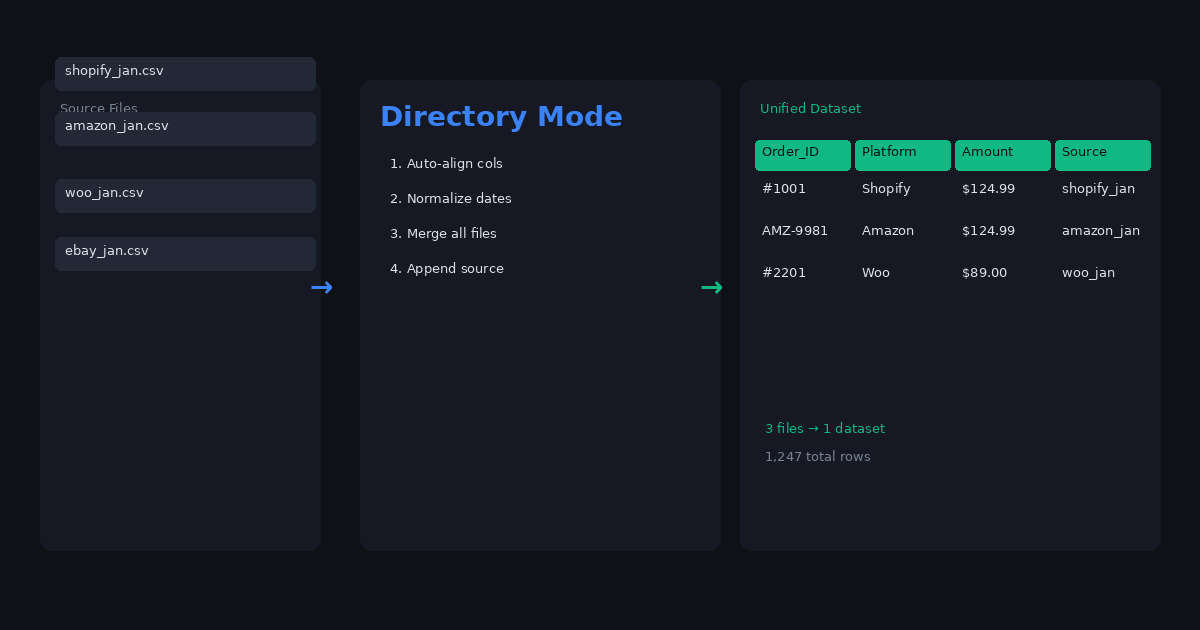
Open the folder in DataOlllo using Directory Mode — DataOlllo reads all files, auto-aligns columns even when the column order differs between files, and combines them into one dataset with a Source_File column.
-
Define your transformation — filter to the records you need, group and aggregate as required, apply any column normalizations.
-
Save the transformation as a reusable workflow for future periods.
-
When new files arrive, place them in the same folder, open in Directory Mode, and apply the same steps. Processing is nearly instant because DataOlllo streams files from disk.
Automating This with Directory Mode
Directory Mode is the key feature for batch processing. Here's how to use it effectively:
- Consistent folder structure — keep your recurring files in the same folder path (e.g.,
C:/BusinessData/WeeklyReports/) - Consistent file naming — use predictable naming (e.g.,
report_2026-01-06.csv,report_2026-01-13.csv) - Consistent column structure — if your source system adds new columns occasionally, DataOlllo's auto column alignment handles missing or reordered columns gracefully
- Batch export — after processing, export all combined data or filtered results to a single consolidated file
When DataOlllo Is the Right Tool
Directory Mode is designed for recurring batch CSV workflows across all industries.
Relevant capabilities:
- Folder batch processing -- process hundreds of files in one operation instead of opening each one individually
- Auto column alignment -- files with different column orders are merged intelligently without manual renaming
- Local processing -- recurring business data stays on your workstation
- Scheduling -- combine with cron jobs to fully automate recurring report processing
The core efficiency gain is eliminating the per-file manual work. Instead of opening 10 files and applying the same filter to each one, Directory Mode lets you apply the transformation once to all files combined.
Get Started
Visit the CSV splitter and merge solution page for more batch processing examples.